Amazing testupload
Jimp eller sharp for bilde komprimering. Moderne og fremtidsrettet, holde oss til node.js libraries virker fornuftig..
Structure of blog mode
/public_html/
├── index.html           # Auto-generated blog homepage post order by based on published date key and with links to static pages
├── posts/
│   ├── my-first-post.html
│   └── another-post.html
├── media/
│   └── images/
├── pages/
└── feed.xml            # RSS feed
Option to change index name if you have other main page of the blog Separate html template for the index blog landing page, what about styling? Gallery view template for notes with only images, can we make a flexible solution to suit many needs? Folder vs frontmatter conditions Static with blog area vs only auto generated Share article functionality, comment (disqus?) About section Tag is currently captured, find a way to generate list (page) of posts with tag Gallery should be optional for both blog post and page
Image handling
Conceptual Workflow:
1. **Identify Large Images:** When processing a note for publishing, find all embedded images.
2. **Check Dimensions:** For each image, compare its actual dimensions (e.g., 2000px wide) to its displayed dimensions in the note (e.g., `> *Missing Image: image_something_something.jpg*`).
3. **Decide to Resize:** If the actual width is significantly larger than the displayed width (e.g., more than 1.5x), mark it for resizing. You should also have a "max width" setting (e.g., 1200px) to resize very large images even if no width is specified.
4. **Perform Resize:** Use the HTML `<canvas>` element to perform the resizing in the background. This is a powerful technique that avoids needing server-side tools.
    - Load the original image file into an `Image` object.
    - Create a `<canvas>` element in memory.
    - Set the canvas dimensions to the new target size (e.g., 250px wide, maintaining aspect ratio).
    - Use the canvas's `drawImage()` method to draw the large image onto the small canvas. This action performs the downsampling.
    - Export the canvas content as a new image file (e.g., as a JPEG with a specific quality setting or as a PNG). You can get this as a `Blob` or a base64 string.
5. **Upload the Resized Image:** Instead of uploading the original file, you upload the new, smaller `Blob`. You could even give it a modified name, like `image-resized-250.jpg`.
6.
**Image Compression Guidelines:**
- **Format:** Use **JPEG** for photos. It offers the best compression for photographic images. Use **PNG** for graphics with sharp lines, text, or transparency. **WebP** is a modern format that is even better.
- **JPEG Quality:** When exporting from the canvas, you can set a quality level between 0 and 1 (e.g., `canvas.toDataURL('image/jpeg', 0.85)`). A setting of `0.8` to `0.9` (80-90% quality) is usually the sweet spot, offering a great balance between file size and visual quality.
- **Dimensions:** A common rule of thumb is to serve images at no more than 1.5x to 2x the display size to look sharp on high-resolution (Retina) screens. For an image displayed at 250px, a source image of 375px to 500px is more than enough. Uploading a 4000px image for that is wasteful.
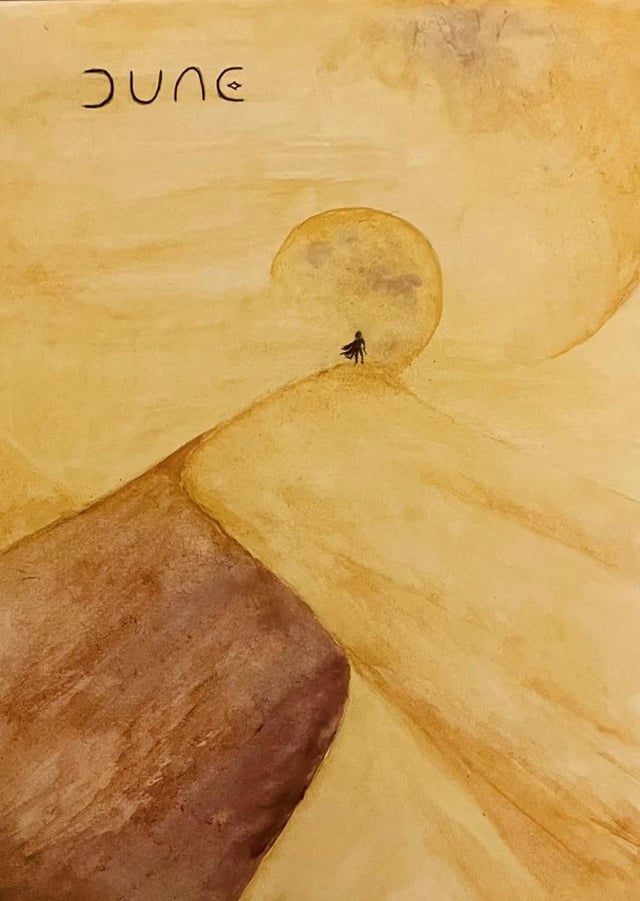 *Bilde: Beskrivelse av Dune bildet i kursiv*
Bilde: Beskrivelse av Dune bildet uten kursiv
### Formattering
Bold **lars**
Italic *Lars*
Italic & Bold ***Lars***
Denne er markert
^^Understreket^^
~~Gjennomstreket~~ slutt
*Bilde: Beskrivelse av Dune bildet i kursiv*
Bilde: Beskrivelse av Dune bildet uten kursiv
### Formattering
Bold **lars**
Italic *Lars*
Italic & Bold ***Lars***
Denne er markert
^^Understreket^^
~~Gjennomstreket~~ sluttBlockquotes:
Test test 2
Lister:
Nummererte lister:
- Vi prøver
- Og ser
- Hvordan nummerert liste er
- kan også
- gjøre slik
Bullet points
- første
- andre